Most small offices keep the shared password in a spreadsheet, a chat message, or one person's memory. All three fail on the same afternoon, when that person takes leave and a client wants a report.
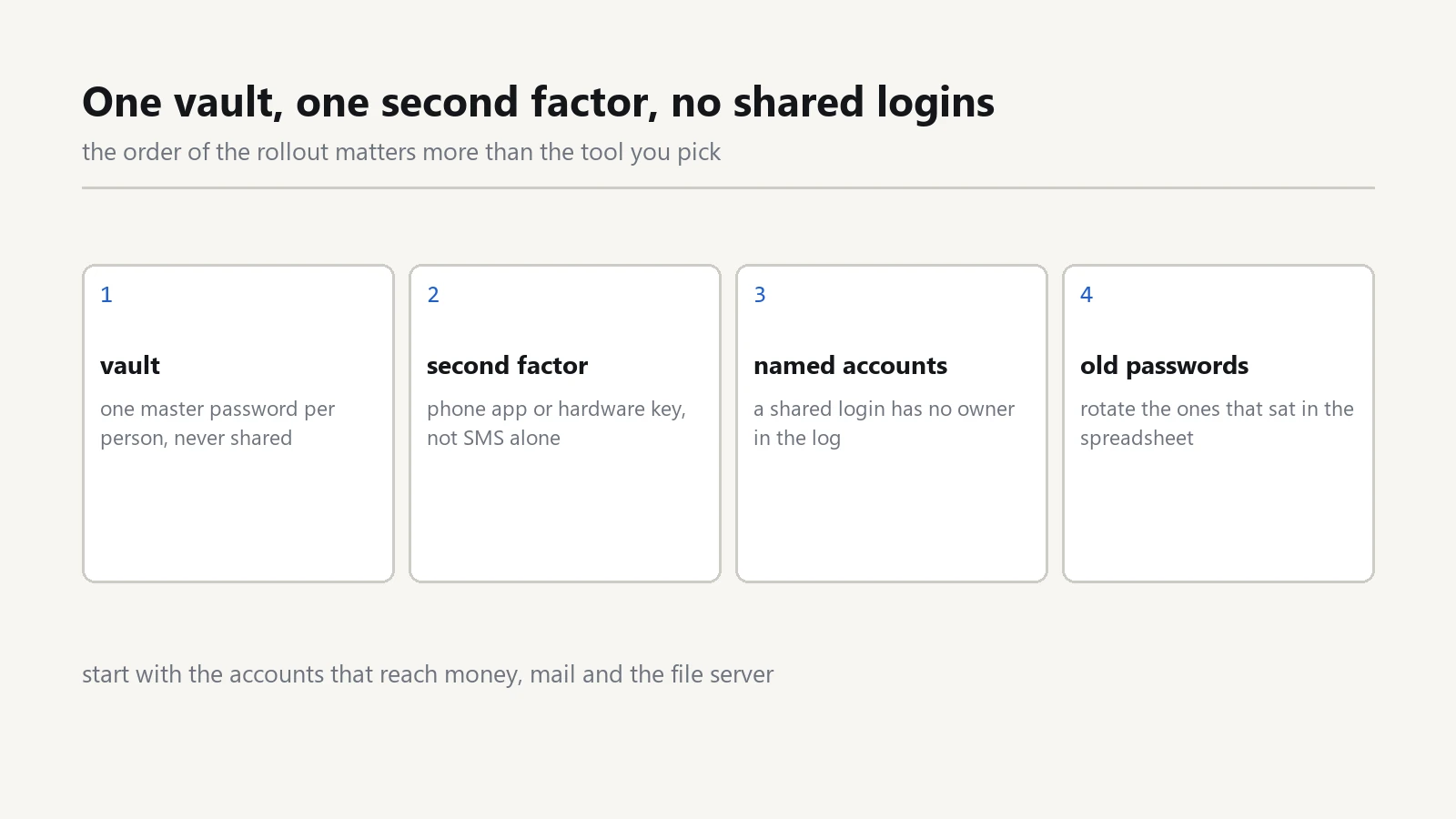
A password manager fixes the storage problem. A second factor fixes the login problem. Together they give a five-person team a working answer without a security budget, and neither part takes a weekend to install.
Start with the accounts that hold money and mail
You do not need to move every login on the first day. Begin with the five that hurt: the bank, the domain registrar, the mail admin panel, the invoicing tool, and any portal where a saved card sits.
Write those five on paper, with one column for each person who needs them. Then mark the ones that allow only a single session at a time. Those few decide the rules you write later.
Choose a Password Manager the Team Will Open
The best tool is the one people use without a reminder. Look for three features: a browser extension, a phone app, and shared folders that let you revoke a set of items in one click.
Business plans usually add a recovery path for the day an employee leaves. That single feature justifies the paid tier over a free personal vault, and it saves an argument with the owner later.
Test with five logins before you import anything. A tool that fails on your banking portal will fail for the whole team, and you want that news on a quiet Friday rather than on payday.
Write the rules for Shared Login
Three rules cover most situations.
- Every person gets a personal vault, even when the login itself is shared.
- Shared items live in a shared folder, never in a chat message.
- Any service that supports named users gets a named user, not one admin account for everyone.
Those rules also make the audit easy. When someone leaves, you remove them from the folder, and the shared login stops working for them while the rest of the team keeps working.
Break the Password Reuse Habit
Password reuse is the habit that turns one leaked shopping site into a mail takeover. Ask staff to change the three accounts they touch most, and let the vault store the new ones.
Do not demand a change of every password on one day. People pick variations of the old one, and the vault fills with junk nobody can audit. Move one group of accounts per week instead.
Then retire the old spreadsheet. Delete it, do not rename it, because a renamed copy is still a copy that circulates in mail two months later.
Add a Second Factor in the Right Order
Start with mail, because most password resets arrive there. Then the bank, then the admin panels, then everything else.
Prefer an authenticator app over a text message. A code in an app works without signal, and it survives an attempt to hijack the phone number.
Mail is also the account your domain records defend. When invoice mail starts landing in spam, the repair sits in DNS rather than in the vault, and the note on SPF, DKIM and DMARC for a small office walks through those three records.
Print the recovery codes and keep them with the paper that matters. A locked drawer beats a note taped under a keyboard, and both beat a screenshot in the mail box.
Expect one pushback: staff who travel and swap phones. Give those people two registered devices before you enforce the rule, or the second factor becomes a locked door with the key inside.
Where the Master Password Lives
One master password unlocks everything, so treat it like the office key. Write it on paper, seal the envelope, and keep it with the owner or in the safe.
Never email it. Never store it inside the vault it protects. Two people should know where the envelope sits, and neither of them should be the only one away when a laptop dies.
Change that password whenever the envelope comes back opened, even if nothing goes wrong. A sealed envelope only works as a control while the seal is intact.
Test the setup before you announce it
Run one drill with a colleague. Remove their access to a shared folder, then watch them open the bank portal. Count the minutes until the old session dies.
Do the same with a lost phone. The account should still open through a backup method, and the vault should still unlock on a spare machine.
Then check the whole path on a fresh laptop with a clean browser. One extension install and one login should be the entire job, because anything longer will be skipped in a hurry.
Handle the tools that refuse to cooperate
Some old portals cap the password at eight characters and skip the second factor entirely. You cannot fix that vendor, but you can limit the damage: give that account its own long random string, and never reuse it anywhere else.
Store it in the password manager with a note that explains what it unlocks. Then check the portal once a quarter, because vendors do add support for longer passwords and app codes over time.
A shared mailbox deserves the same treatment. Give each staff member their own login and grant access to the mailbox, so a departure costs one permission change rather than a password reset for the whole team.
Keep the list next to the offboarding notes
Access control and staff changes share the same page. Our IT offboarding checklist runs through this vault on the last day, and the note on guest Wi-Fi without exposing shared files covers the login a visitor must never receive.
If a machine dies, the 3-2-1 backup plan decides whether the work survives. If an alert arrives at nine in the morning, the guide to the first 60 minutes after a ransomware alert tells you which sessions to revoke first.
Start with five accounts and one shared folder this week. A vault with five entries that everyone actually uses beats a perfect policy on a slide.