Two people in the office need the same invoice. One opens it without trouble, the other sees a message about permission. Nobody remembers who set that up, and the person who did left months ago.
Office file share permissions decide which folders a person can open, save to, or delete. A team of three to fifteen needs no clever system. Three folder types, one written rule for each, and a check twice a year cover the whole job.
Start with three folder types
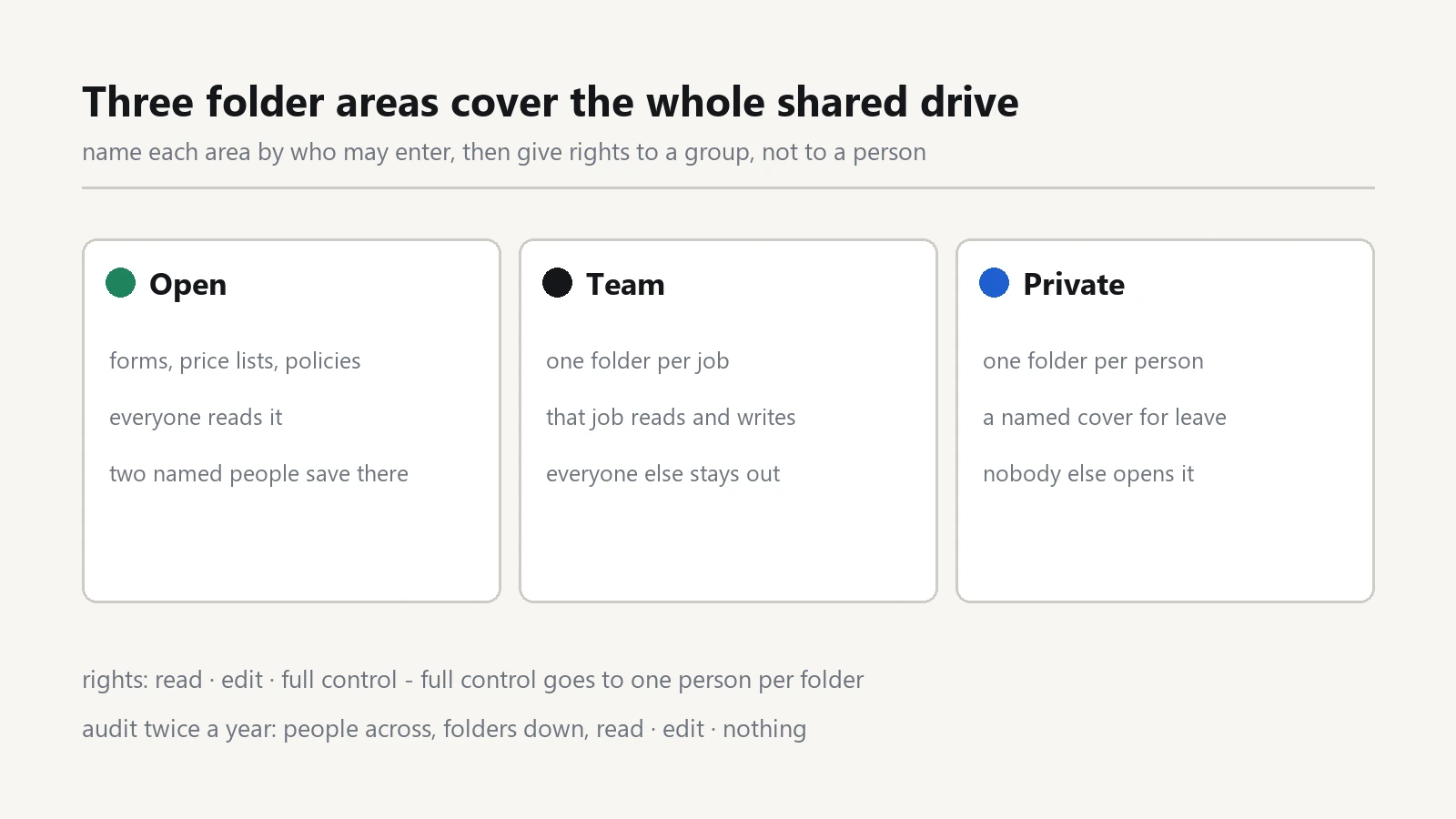
Split the shared drive into three areas, and name each one by who may enter.
The open area holds forms, price lists, policies, and the holiday calendar. Everyone reads it, and two named people save new files there.
The team area holds one folder per job: accounts, sales, projects, warehouse. People in that job read and write, and everyone else stays out.
The private area holds one folder per person, for draft reviews, salary letters, and notes to self. A folder inside it named archive keeps the old drafts out of sight, so the live list stays short enough to scan.
Most requests answer themselves once the three areas exist. Ask who needs the file next week, not who created it.
Set file share permissions by role
Give permission to a group, never to one account at a time. Windows calls it a security group, a NAS calls it a user group, and Google Drive and SharePoint use the same word. That single habit is what people mean by folder permissions, and it keeps the list short enough to read in one sitting.
To grant it on a Windows share, right-click the folder, choose Properties, open the Security tab, press Edit, then Add, and type the group name. Read the list back before you press OK, because one folder is easy to get right and ten in a row are not.
Three rights cover office work: read, edit, and full control. Read is the default, edit goes to people who save changes daily, and full control goes to the one person who looks after that folder.
Full control includes the right to change permissions, so hand it out once per folder. A second holder doubles the chance of an accident.
Name groups after jobs, such as Accounts or Workshop. A new hire then joins one group and inherits the correct access within the minute.
Give each person a private folder
A new employee needs a place for the half-finished quote and the note about a supplier. Without one, that material lands in the open area and stays there for years.
Create the private folder on the first morning, and name it after the person. Let them read and write inside it, and stop them from seeing anyone else's.
Then write the cover rule. Somebody must open that folder during leave or after a departure, so name one person in the record, usually the office manager.
Private is not the same as hidden from the company. Say so when you hire, because a folder everyone believes is secret causes worse trouble than one with a plain rule.
Run a simple access audit
Shared drive access changes with every hire and every contract, so trust a table rather than memory. An access audit takes one table and one hour. List people across the top, folders down the side, and mark read, edit, or nothing. Then read the table with the manager who knows the work.
Two errors show up almost every time. Someone opens payroll without needing it, and someone cannot open the folder their job requires.
Windows shows the real list under Properties, then Security, then Advanced. On a NAS, open the folder settings and read the group list. Both screens look busy, so save a screenshot and work from that.
Repeat the audit when a person leaves, when a role changes, and once a year. Twice a year suits a team that hires often.
Replace the one shared login
Some offices still keep one login for the whole accounts folder. That login hides who deleted an invoice and who copied the client list onto a personal drive.
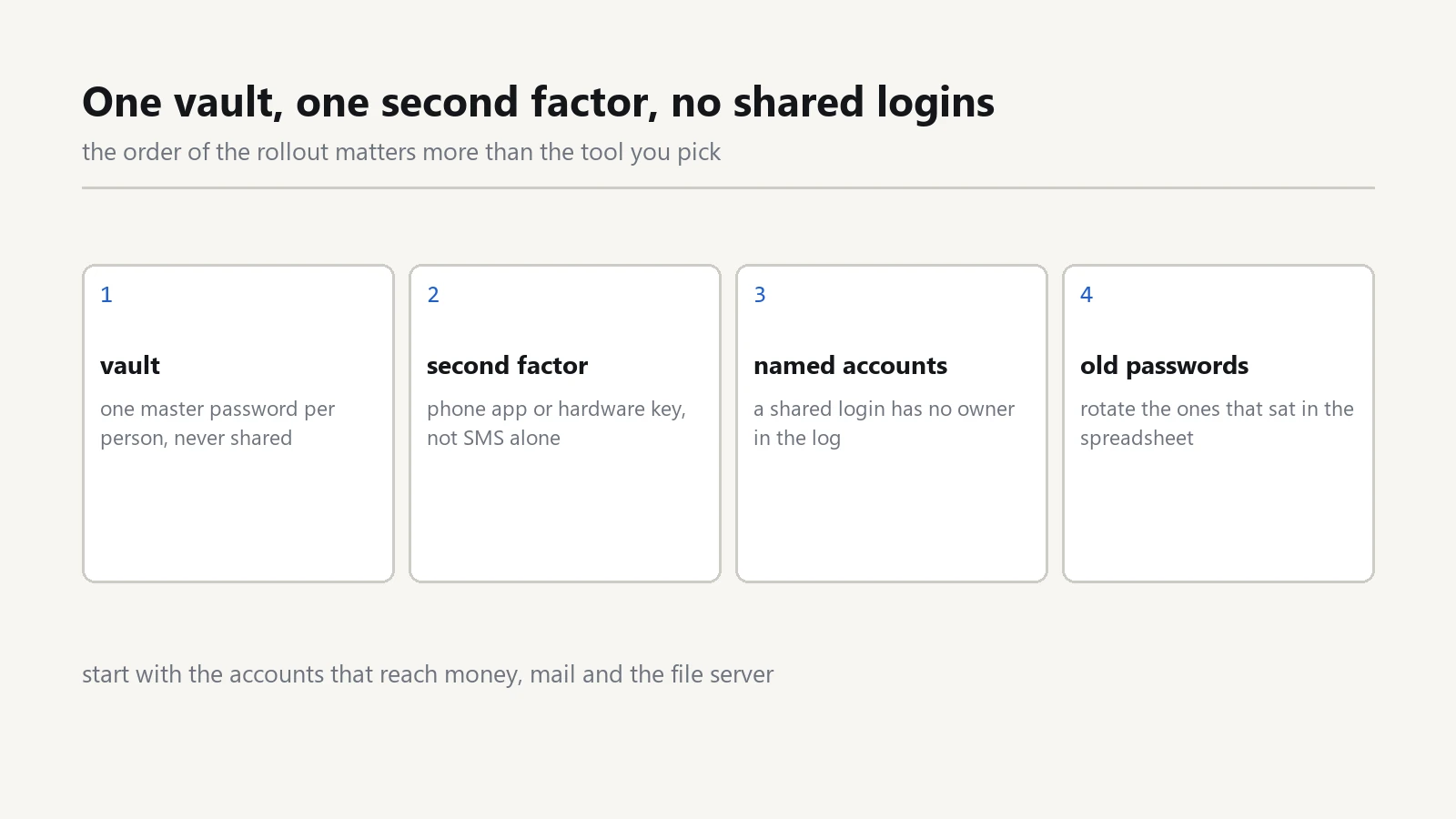
Give each person a named account instead, and keep the passwords in one shared vault. Our note on a password manager and MFA for office staff covers the setup in an afternoon.
Shared machines need care here. If the workshop terminal or the till runs a common login, keep that login away from the file share, so a shared password never becomes shared data. The same idea sits behind guest Wi-Fi without exposing shared files, where a visitor gets the internet and nothing else.
Write the rules in one page
Keep a page that names each folder, the group allowed in, and the person who owns it. Store the page in the open area, since a rule nobody can read protects nobody.
Print the folder tree once and pin it beside that page. A newcomer reads a map faster than a login screen, and the tree shows the three areas at a glance.
Add the date of each change and the name of the person who made it. That line settles the question which always arrives later: who gave the temporary contractor the project folder?
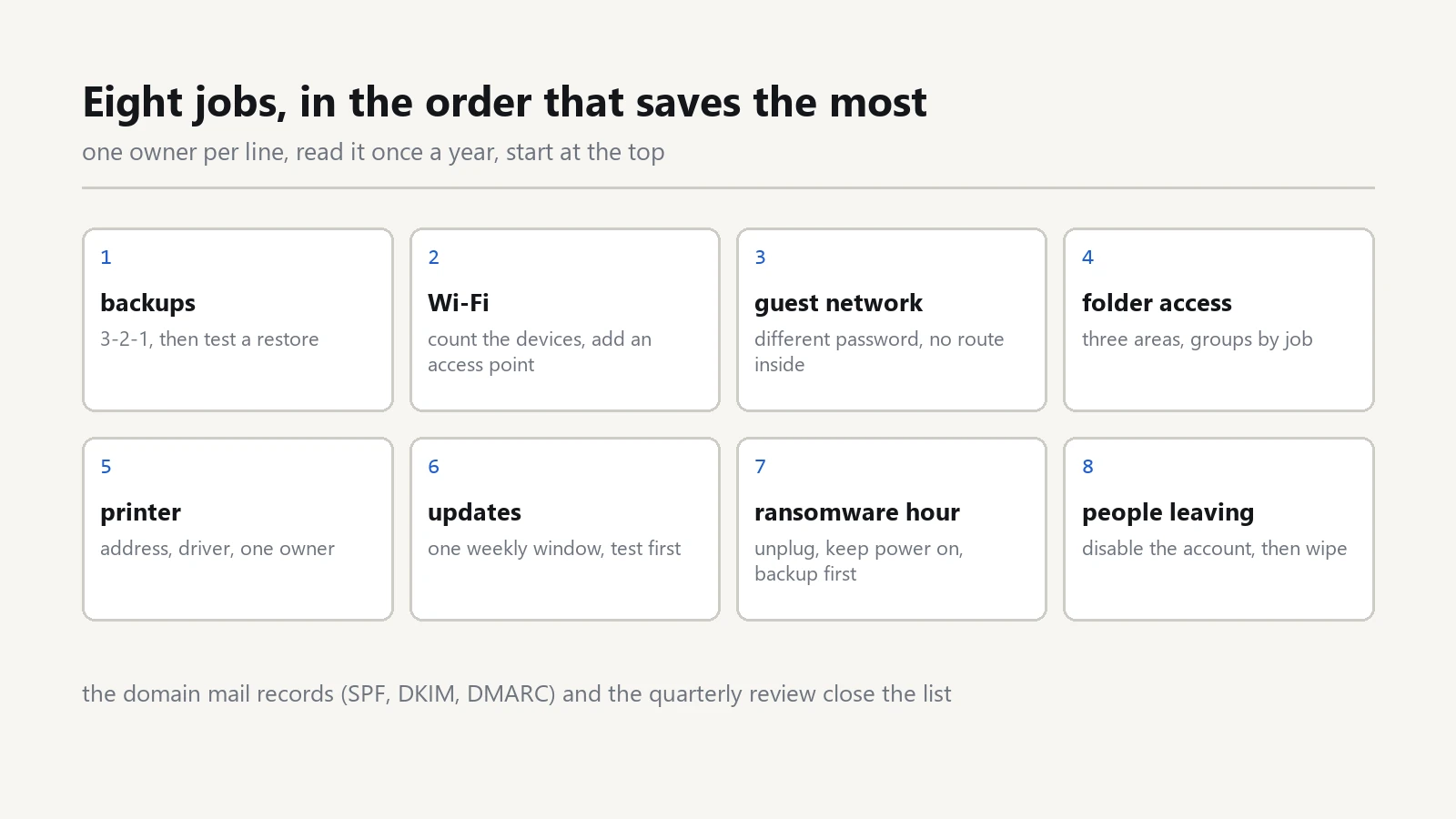
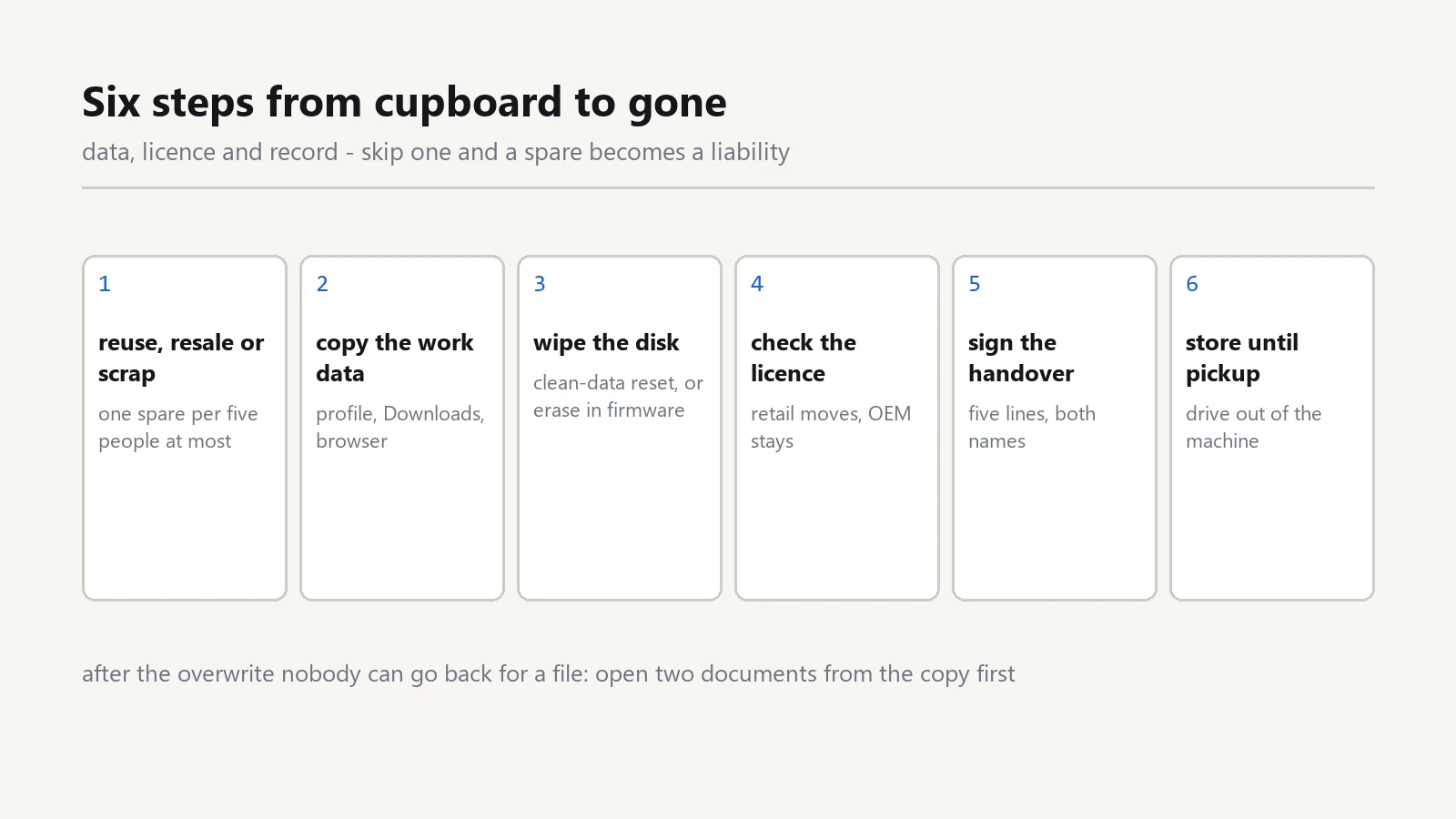
Two events change access more than any other. A departure, covered in our IT offboarding checklist, and a device that leaves the building, covered in the steps to retire an old office laptop safely.
Devices bring their own schedule too. A machine that misses its patch round still holds the same files, which is why the Windows update policy for a small office belongs in the same folder as the access page.
A shared drive which follows these rules survives staff changes without a rescue job. The review takes one morning, and the next hire takes ten minutes.