A four-year-old laptop sits in the cupboard with a label that says retired. Nobody uses it, nobody owns it, and the disk still holds the payroll file from two years ago.
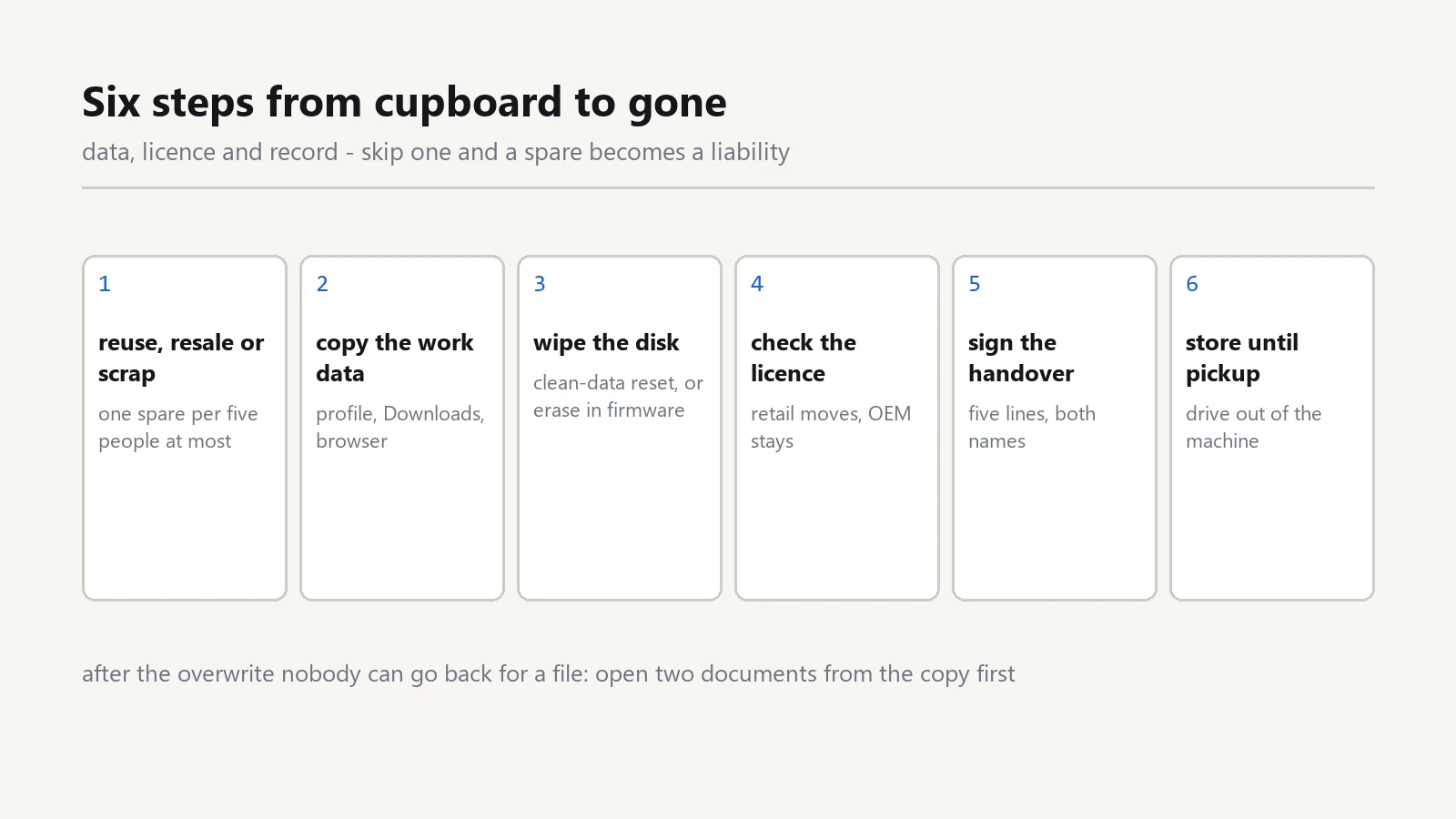
Retiring a machine takes one afternoon and a short form. The work splits into three parts: the data, the license, and the record. Skip any one of them, and a spare turns into a small liability.
Decide reuse, resale, or scrap
Start with the question that settles everything else. Does the machine still run current software at a usable speed? A laptop that opens mail and a browser in reasonable time can serve as a spare, a workshop terminal, or a desk for a temporary hire.
If it cannot, resale or recycling makes sense. Both paths end in the same place, so treat them the same way: no data left on the disk.
Keep one spare for every five people at most. A cupboard of six dead machines is not a plan, and each one of them still holds a drive.
A machine kept as a spare needs the same care as a working one. Put it on the schedule from our note on a Windows update policy for a small office, or it will sit for a year and then ask for an hour of patches on the day you need it.
Copy the work data first
Open the user profile and look in five places: Desktop, Documents, Downloads, the mail store, and the folder that syncs to the cloud.
The Downloads folder hides the most. A supplier quote or a scanned contract often lands there, and nobody moves it afterwards.
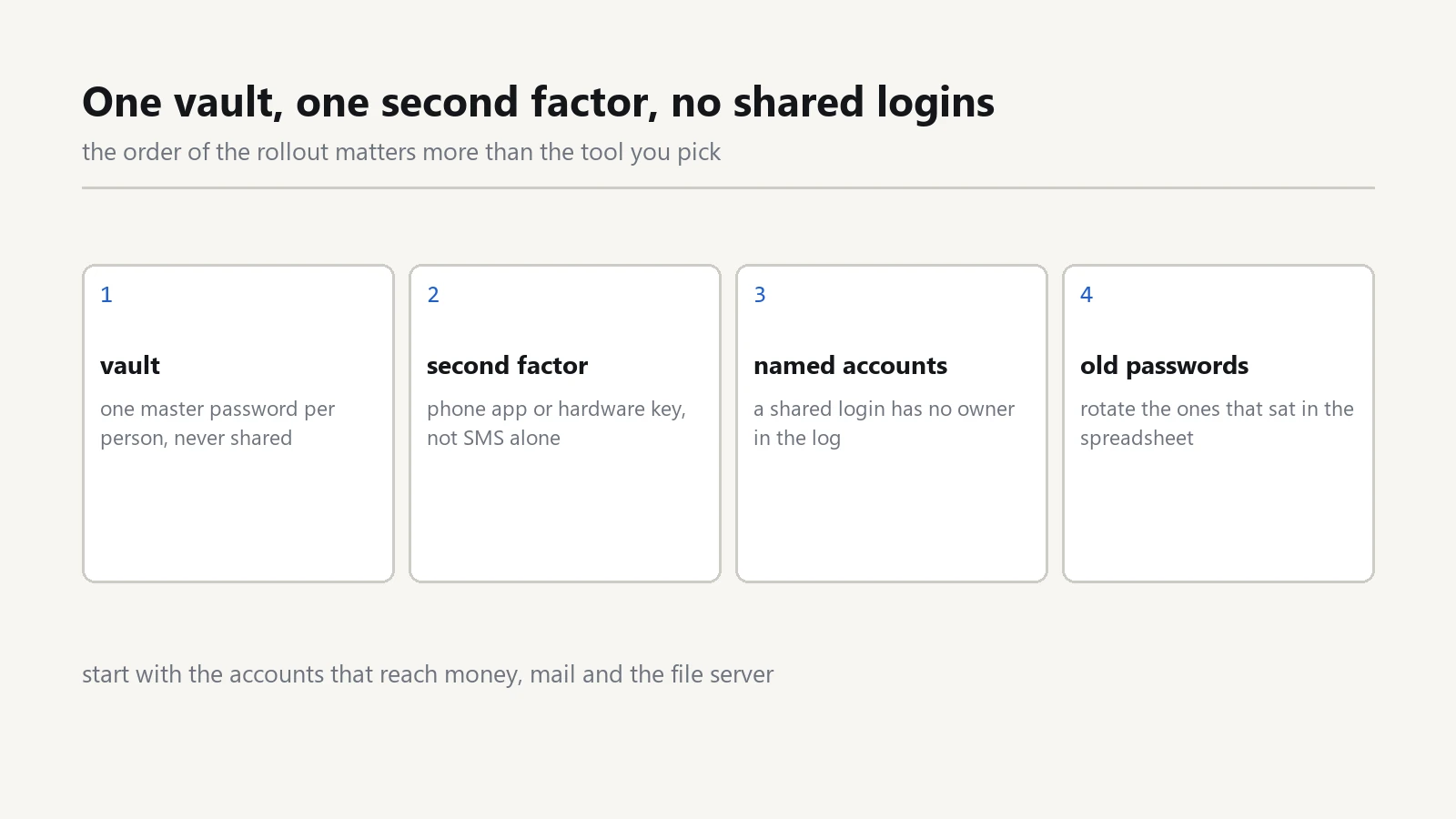
Then open the browser and export the bookmarks, which are the only part worth keeping. Saved passwords and open sessions live in that same profile, so copy nothing from it and move any login still in use into the team vault instead.
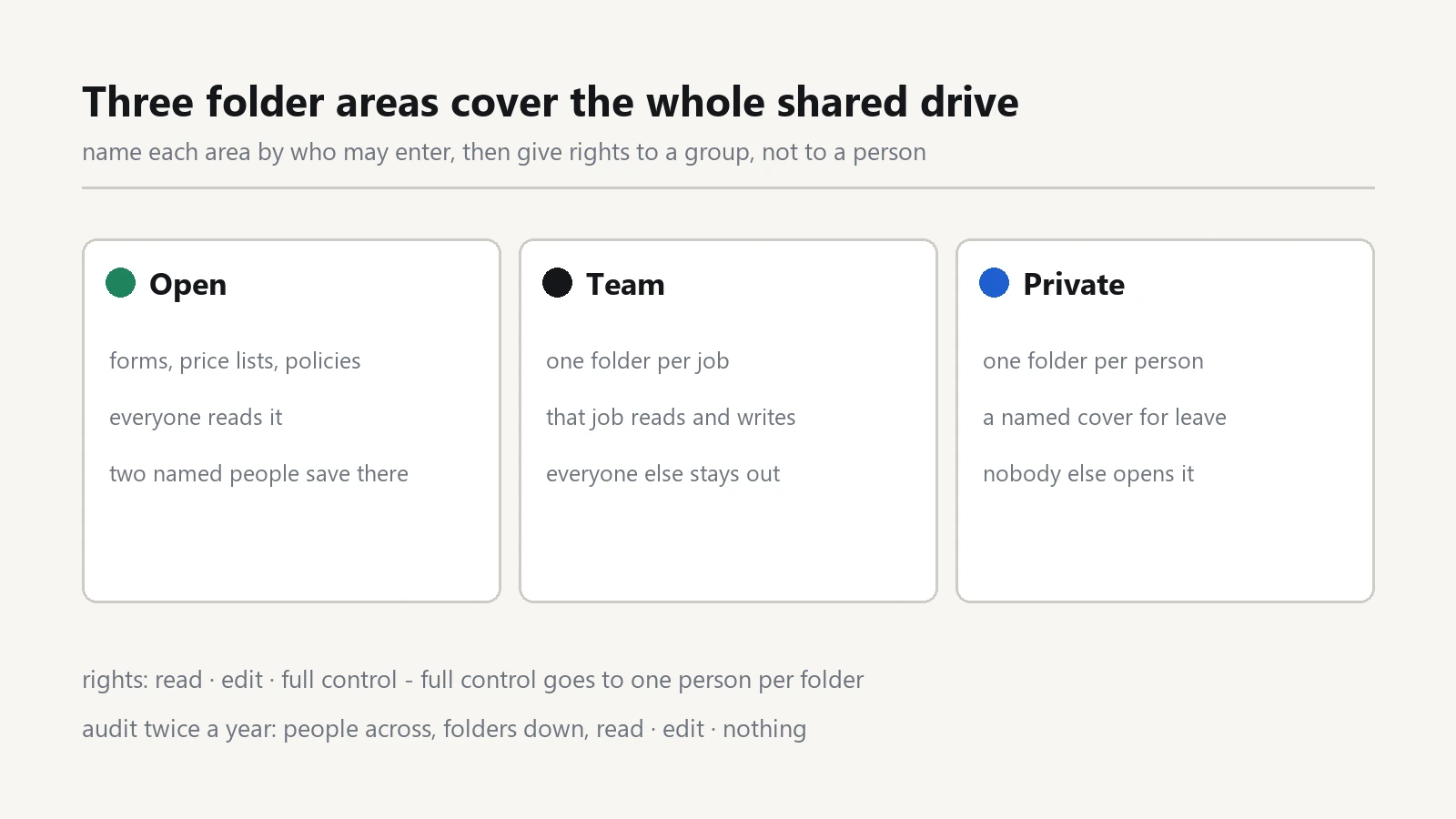
Move the useful files into the team area of the file share permissions structure, where the next person can find them.
Confirm the copy opens before you touch the disk. A folder that copies without an error can still hold a broken file, so open two documents at random and read a page of each.
Check the software license first
Most office machines carry three kinds of license: Windows itself, an office suite, and one or two tools bought for that person.
A retail license can move to another machine. An OEM license stays with the machine it arrived on, so note which type you hold before you scrap anything.
Write the product key down and sign out of the office suite while the machine still starts. A wiped disk takes both with it, and the key is the part an auditor asks for.
Then read the subscriptions. A design tool or a backup service billed per device keeps charging after the laptop goes into the cupboard, and nobody notices for a year.
Remove the device from each account, then decide whether the seat moves to the replacement. Keep the order number in the same folder as the purchase records.
One more place to look: the password vault. Delete the entries that existed only for that machine, such as a local admin password or a till application, and check who else held them using the rules in password manager and MFA for office staff.
Wipe the old office laptop drive
A delete key press removes the index, not the content. Anyone with a recovery tool can bring back the file, which is why the overwrite matters.
Windows offers Reset this PC with an option to remove everything. Choose the clean-data option, which overwrites the old office laptop drive instead of performing a quick format.
On a solid-state drive, use the maker's secure erase tool when the machine offers one. The firmware routine handles the drive better than any software pass.
If the machine will not start, take the drive out and destroy it. A drill and a hammer cost ten minutes, and a recycling point with a shredder costs a short drive.
Ask one question before you wipe the drive: does anyone still need a file from this machine? After the overwrite, the answer cannot change.
Write down what you did. A line that reads wiped with the clean-data reset, plus the date, covers most audits without extra work.
Record the handover in writing
Use a handover form with five lines: who had the machine, the serial number, the date, what happened to the disk, and where the machine went.
Add a line for the license decision and one for the data copy. A form with those lines answers the question that arrives months later, usually from an auditor or a new manager.
Both people sign it: the person handing the device in and the person who wiped it. When one person does both jobs, note that fact as well.
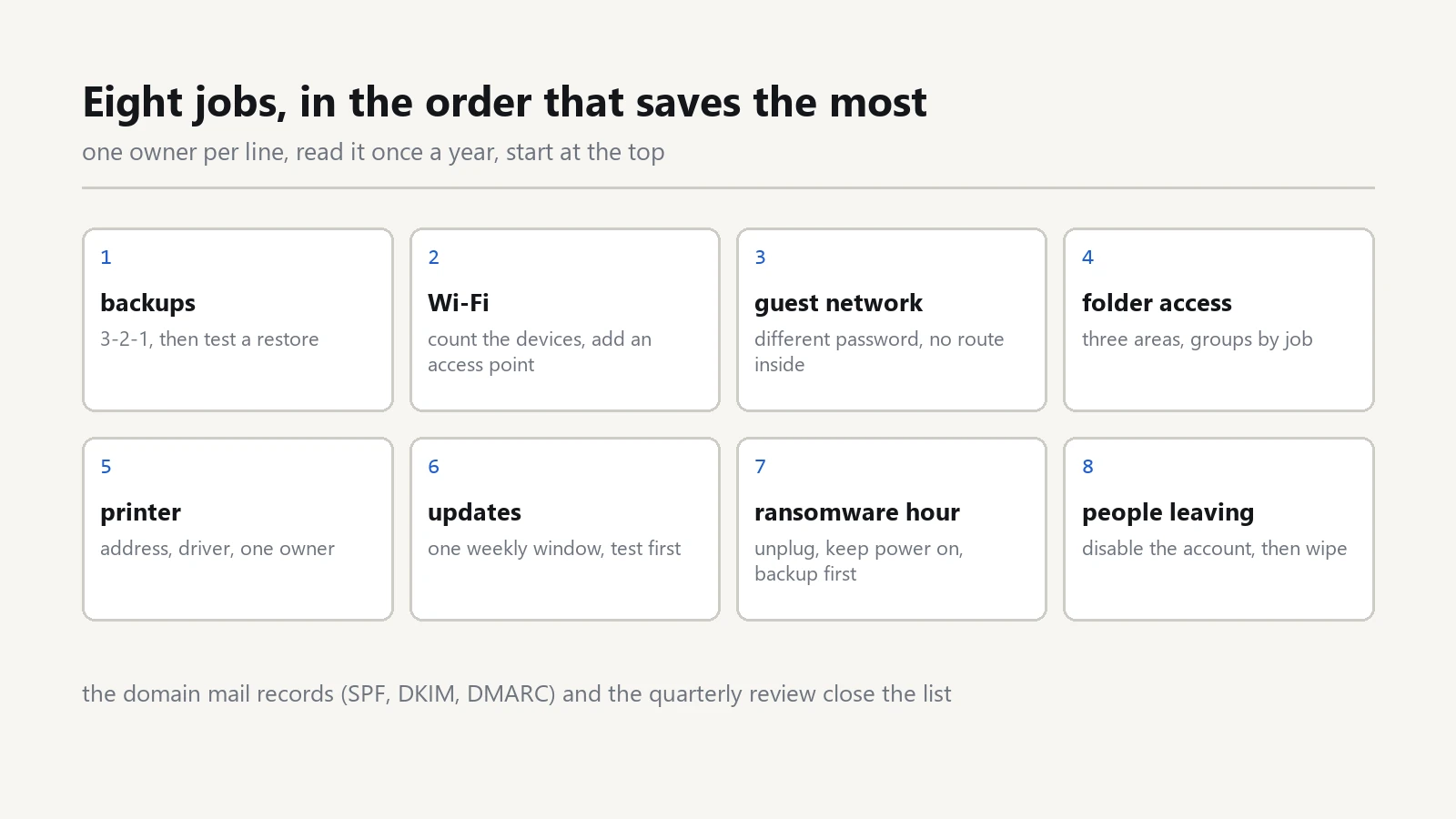
Keep the forms in a single folder with the hardware purchase records. Your data destruction record then sits next to the invoice for the machine, which is where an auditor looks first. Our IT offboarding checklist covers the accounts of a departure, while this page covers the hardware.
Store the machine until pickup
A wiped laptop still needs a home. Label it with the date and the word wiped, then keep it in a locked cupboard rather than a desk drawer.
For resale or donation, remove the battery when it detaches easily. Keep the charger with the machine too, since a laptop without one sells for less and looks abandoned.
Book the pickup in the calendar on the day you wipe the disk. A machine with no date on the calendar sits in the cupboard for another year, and the paperwork loses its value.
The rule that ties the afternoon together is simple: no device leaves the office until the data is gone and the form is signed. That habit protects the person who signs it as much as the company.
Teams that do this once tend to keep the form. The second departure takes twenty minutes, and the cupboard finally holds only machines that still work.