A message about updates appears on four laptops at once, in the middle of a Tuesday. One machine restarts while a quote sits half-finished, and the person who wrote it spends the afternoon retyping.
A written Windows update policy turns that scramble into a routine. It fixes the day, the hour, the order of machines, and the person who watches the first one. No new software is needed for any of it.
Pick one weekly update window
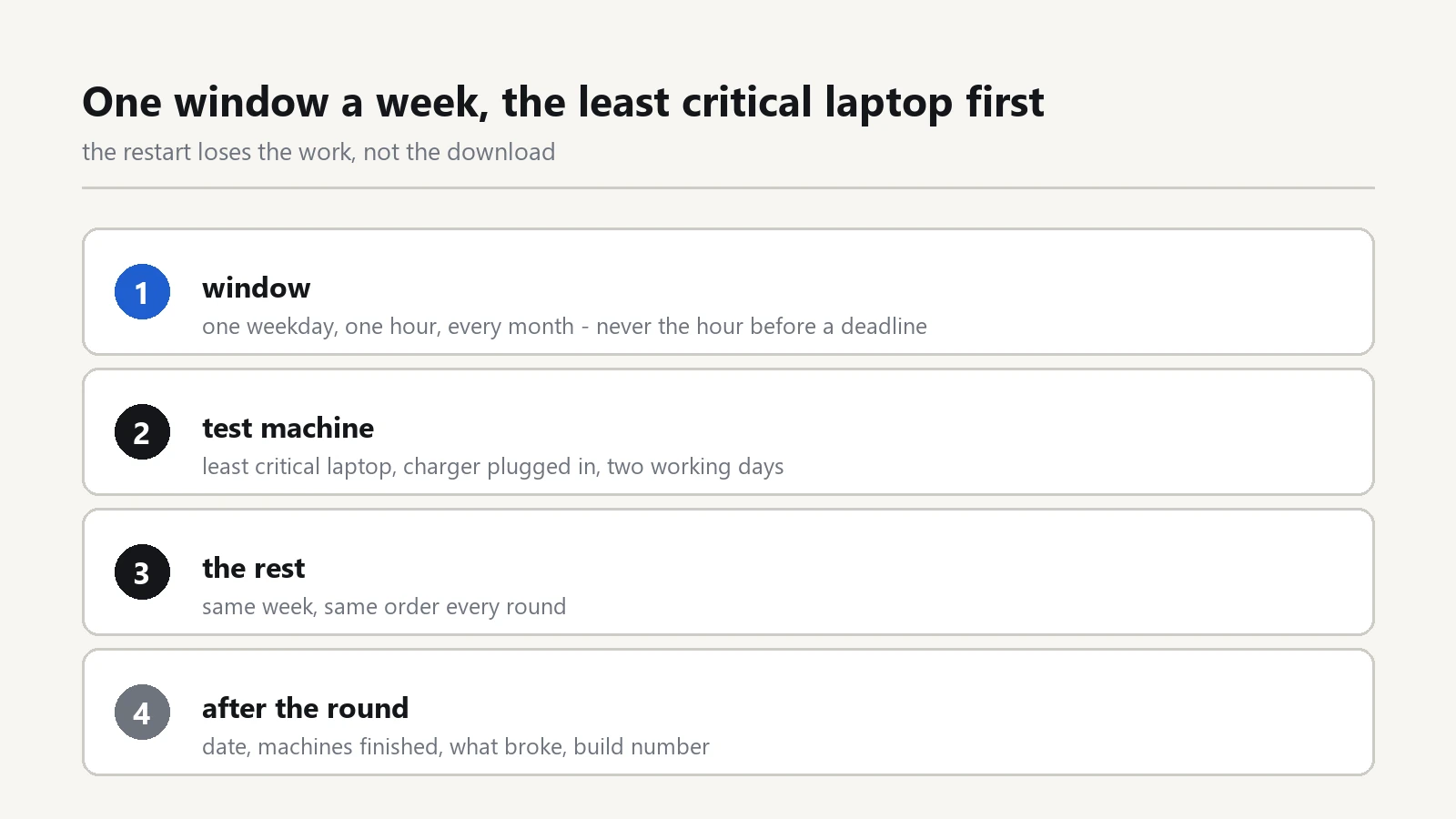
Settle on one weekday and one hour, and keep both for every month of the year. A weekly round suits a small office better than a monthly scramble, because each round stays small.
Two windows work well in practice. A slot at half past five catches machines still switched on, and an overnight slot catches machines left plugged in. Choose the one your team can actually keep.
Avoid the hour before a deadline. Ask the accounts team when their reporting days fall, and leave those days out of the window entirely.
Then tell everyone the window exists. A schedule nobody knows about still feels like an ambush when the screen turns blue.
Set the Windows update policy
Open Settings, then Windows Update. Two controls there carry most of the weight: active hours and pause.
Active hours tell Windows not to restart while people work. Set the range to cover your opening hours, and let the restart land after closing.
Pause defers updates for a set number of days. Use it around an event, not as a habit, because a paused machine also skips the security fixes.
Write one line per device: the name, its window, and who checks it. A machine that runs the till or the booking desk deserves its own line, since a restart there costs real money.
Test on one machine first
Pick the least critical laptop and update it first, always. Leave it running for two working days with the usual programs open: mail, the accounting tool, the label printer.
If the test machine behaves, the rest can follow in the same week. If it misbehaves, you have lost two days rather than a morning of ten people.
Keep the order stable across rounds. The same test machine every time tells you what changed, while a different one each round tells you nothing.
Leave the charger connected during the test round. A laptop which sleeps halfway through an install can come back with a driver half in place, and that fault is slow to spot.
Protect printers and drivers
Printers cause most of the noise after an update, and the cure usually comes from the maker rather than from a setting in Windows.
Keep two things ready before the round: the printer driver file and a fixed address for each network printer. The repair, if a queue empties anyway, is in our guide to a shared printer that disappeared after a Windows update.
Old label printers and card readers deserve a test print after each round. Some of them ship with drivers that no longer install on a current Windows build, and that news always arrives at a bad moment.
Run the driver check on the test machine before the rest of the office follows. A bad driver then stops at one desk instead of five.
Plan the restart, not the patch
The restart is where work gets lost, not the download. A restart plan written down beats a warning at the last minute. Tell people the evening before, in one plain sentence about the hour and what to save.
Ask them to close the accounting file and the mail window before they leave. The machine can then restart without a dialog that nobody answers.
One person should sweep the office at the end of the window. A laptop asleep at home may wait weeks for its turn, so note which machines skipped the round and catch them the next week.
Laptops that travel need a different rule from desktops. Ask the traveler to run the update on the first evening back, and to keep the charger connected.
Keep a rollback point ready
Before each round, note the build number from Settings, then System, then About. If a program breaks, open Settings, then Windows Update, then Update history, and use Uninstall updates on the patch from that date. The build number tells you what to compare against after the rollback.
Keep a full backup of one working machine, because a rollback across ten machines is a week of work. The 3-2-1 backup plan for a small office covers the copy that survives a dead disk.
Write three lines after every round: the date, the machines that finished, and anything that broke. The note stays short, and it ends the argument about whether the update caused the fault. Keep the note in the shared drive, not on the laptop you just rolled back, because a record that travels with the machine is no record at all.
Keep the policy with other rules
Two neighbours of this job want the same treatment. Access to the shared drive belongs with the rule on file share permissions, and a machine that leaves the office belongs with the steps to retire an old office laptop safely.
Both notes follow the same habit. Name the order of steps, write down who ran them, and keep one page that a new hire can read in a minute. A policy that fits on one page gets followed; a policy that fills a binder gets ignored.