Ticking the guest network box in the router is the easy part. What most small offices never check is the part that matters. Can a visitor still open the shared invoices folder? Can they reach the printer queue, or log into the router itself?
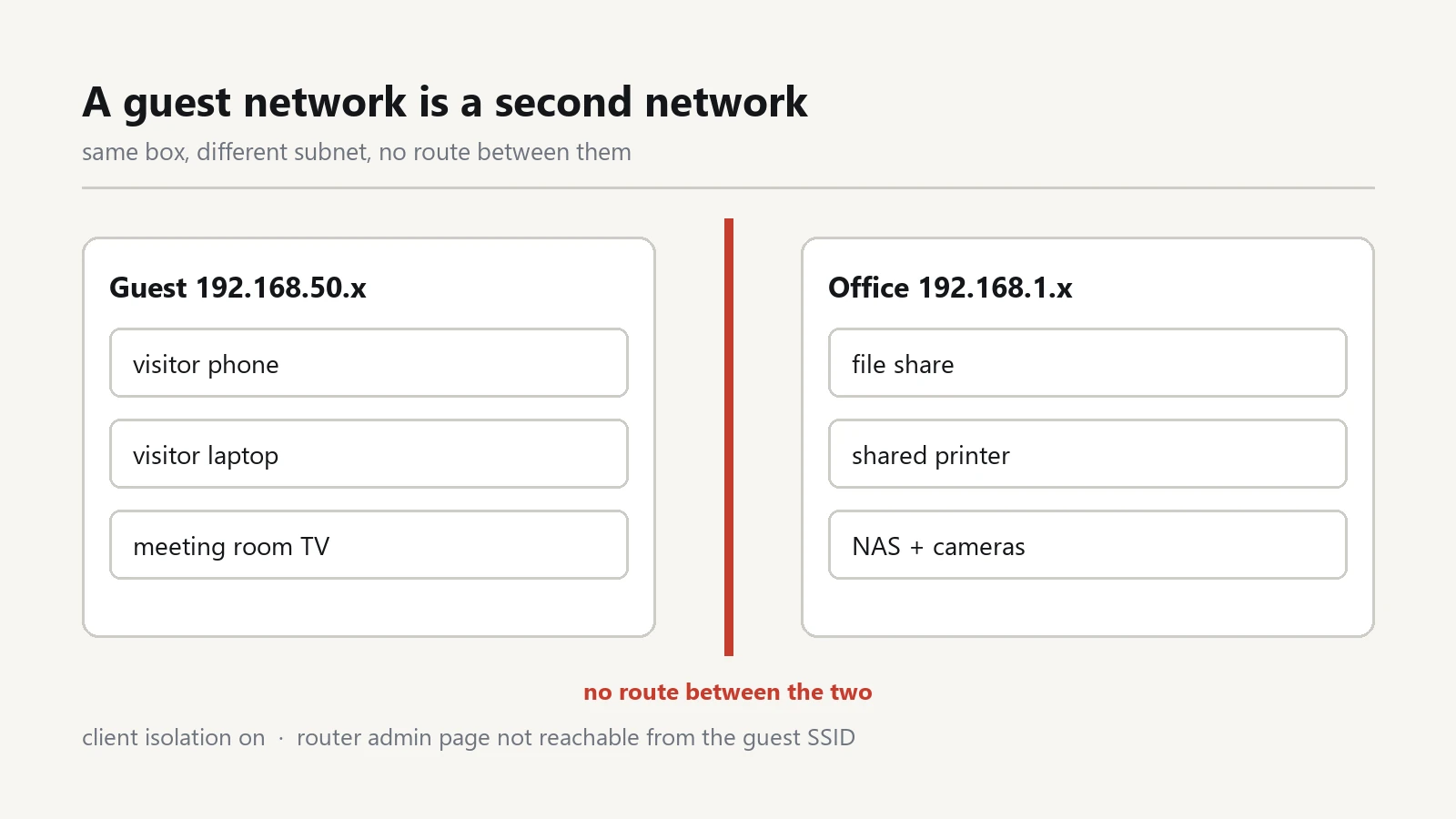
A guest network is not a second name for the same office network. It is a second network with its own address range. The two must not be allowed to talk to each other. If that separation is missing, you have a second password, not a guest network.
What a guest network actually isolates
Three things need to be true before a visitor is properly separated from the office:
- A different subnet. The office might be 192.168.1.x. The guest network should be something else, like 192.168.50.x. Without a separate range there is nothing to firewall.
- No route between the two. A guest device must not reach office addresses, file shares, printers, cameras or the NAS.
- No access to the router admin page. The worst case is not a stolen file. It is a visitor who resets your router and locks you out.
Step 1: give the guest Wi-Fi network its own name and password
Log into the router and find the wireless or guest settings. Create a second SSID with a neutral name. "CompanyName-Office" tells anyone in the building what to attack. It also makes the main network easier to find from the parking lot.
Use WPA2 or WPA3. Choose a password that is not a variation of the main one. Visitors type it on phones in front of you, so treat it as public. It will be shared, photographed and typed into devices you will never see again.
Two free wins while you are on that screen. Turn WPS off, because it was built for convenience and is regularly broken. Then disable remote management of the router from the internet.
Step 2: turn on client isolation
Client isolation stops wireless devices on the same network from talking to each other. Some routers call it AP isolation or station isolation. On a guest network this is what you want. One visitor should not be able to open a port on another visitor's laptop.
It is usually one checkbox in the guest network settings. Check where it applies. Some routers limit it to the guest SSID, which is correct. Others apply it to everything, which will break your office printer if you enable it on the main network by mistake.
Step 3: block access to the local network
Many routers have a checkbox named "allow guest to access local network". It is sometimes enabled by default so that guests can print. Untick it.
No such checkbox? Look for a VLAN setting or a separate subnet. If both networks share one address range, the guest network is decoration. The real fix is a router that supports guest isolation, or a small business access point with VLANs.
Step 4: lock the router admin page
The admin page usually sits at 192.168.1.1, and every device on the network can reach it. Two changes reduce the risk:
- Change the admin password from the default. Do not reuse the Wi-Fi password for it.
- Disable administration from the guest network, if the router offers that switch.
If the router allows neither, write the admin password down in the office. Keep it out of the drawer next to the coffee machine.
Step 5: test it from a guest phone
This is the step almost everyone skips. Join the guest network from a phone or a spare laptop. Then try to reach the office on purpose:
- Open a browser and type the router address. You should get nothing, or a login page you cannot use from there.
- Try the file server by name or address, for example
\\192.168.1.10\share. It should time out, not ask for a password. - Try to print to the shared printer. It should fail, not queue a job.
- Ping the office gateway. Requests should be blocked.
If any test succeeds, go back to step 3. A guest network that can reach the file server is worse than none. It looks safe, and it is not.
What guests still share with you
Isolation protects your files. It does not protect your bandwidth or your reputation. Three things remain on your side of the line:
- Bandwidth. Rate-limit the guest SSID if the router allows it. One visitor uploading a video can starve the office.
- Your internet connection. Traffic leaves through your provider. Some countries require you to keep a record of who used the connection. That is a policy question, not a router setting.
- Bad devices. A guest laptop with malware still sits on your wireless. Isolation stops it from reaching your files, which is the important half of the job.
Put the office devices on the guest network too
The guest network is the right home for devices nobody wants to think about. The smart TV, the door camera, the cheap Wi-Fi plug, the label printer with old firmware. They rarely need a file share, and they are the devices most likely to be forgotten.
Keep a list of what is on that network, with the date it was added. When something misbehaves, you will know what to look at. When a device is retired, you will know what to remove.
The one reason to let guests reach the office network
Printing. A visitor who needs a boarding pass or a signed page is the standard reason people open the whole guest network to the LAN.
Do not do that. Ask them to email the file to a staff member. Or hand them a USB stick. If the printer supports it, use its email-to-print address. Keep the guest network isolated and solve printing separately. The file share is not part of printing.
Hand it over without handing over the office
A guest network that works is one you can give away without thinking. Print the password as a QR code and put it on the wall in the meeting room. Rotate it when a group of visitors leaves. If the router supports a schedule, turn the guest SSID off outside office hours. A network that is not broadcasting cannot be attacked.
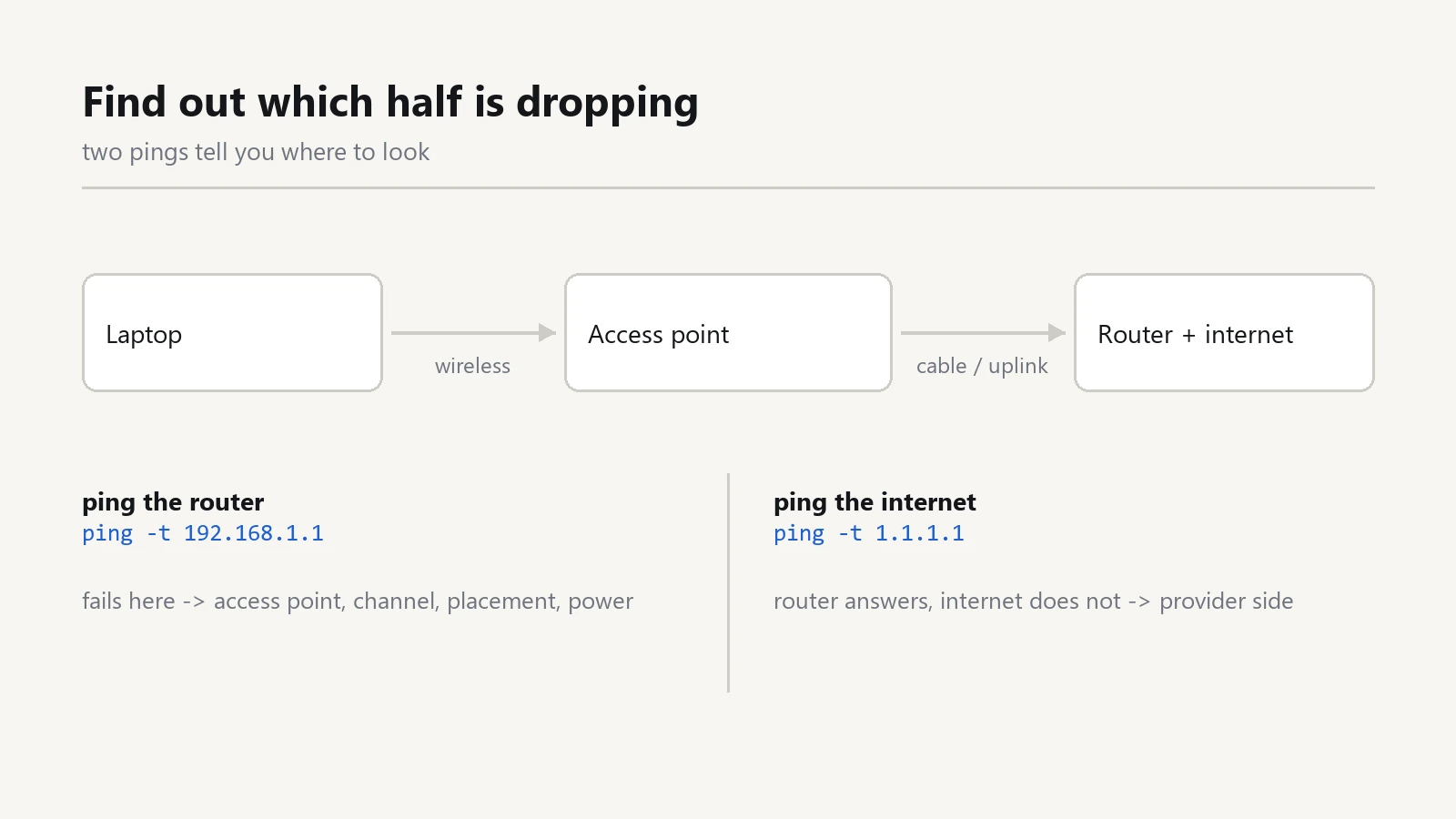
If the wireless keeps dropping while you are at it, work through the seven checks before buying new hardware. Keep a copy of the office data somewhere else with a simple 3-2-1 backup plan.