The complaint is always the same: the Wi-Fi worked for a year, and now it drops three times a day. Somebody power-cycles the router, it behaves for a week, and the cycle starts again. The usual next move is a trip to the electronics store, and the usual result is the same drops on newer hardware.
Hardware is rarely the cause. Below are the seven checks worth running first, in this order. Six of them cost nothing, and each one either fixes the problem or rules out a whole category of it.
Wi-Fi keeps dropping? First, separate it from the internet connection
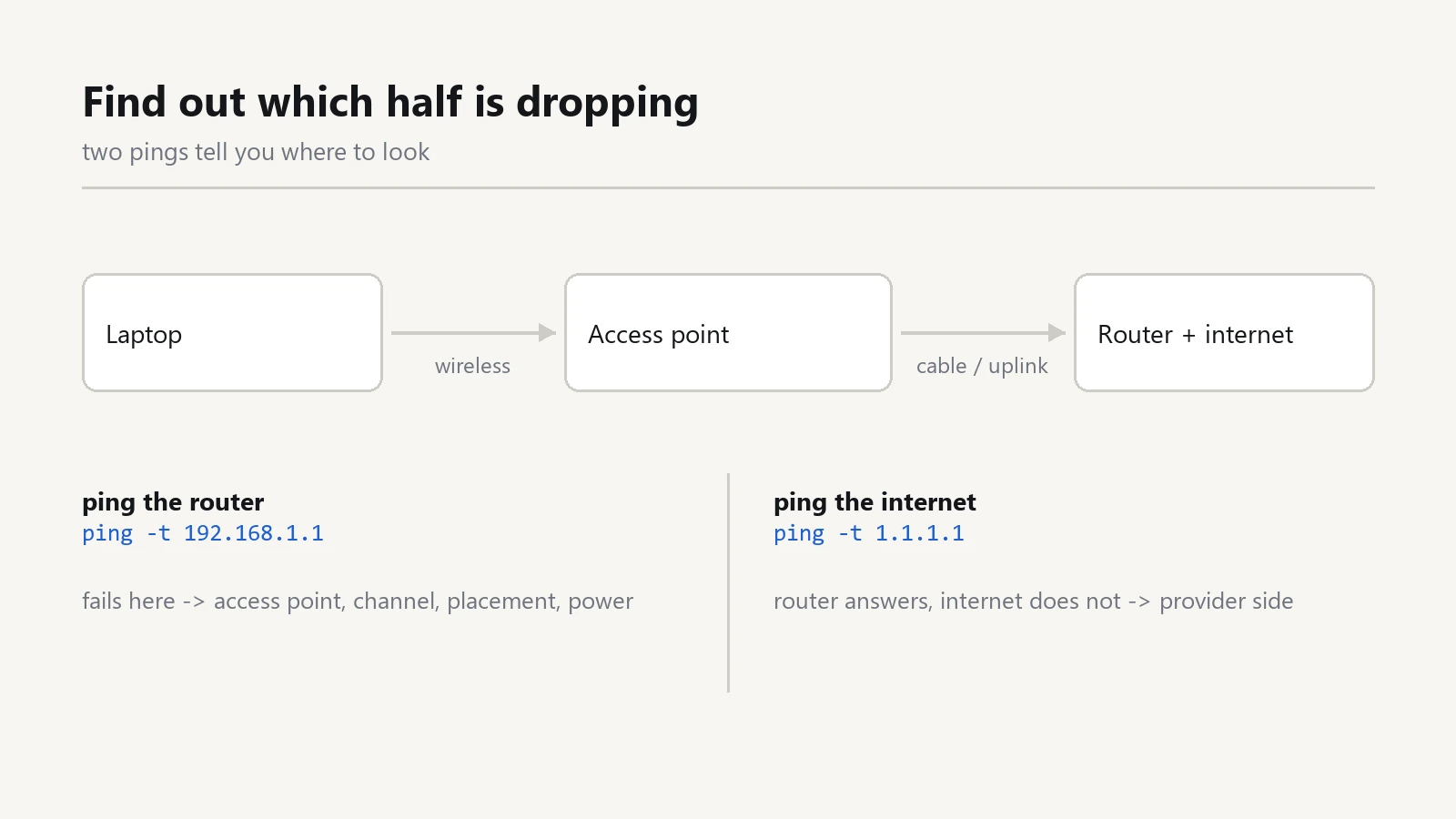
Most "the Wi-Fi keeps dropping" reports are two different faults wearing the same clothes. Find a laptop that drops, open a terminal, and run two pings at the same time: one to the router, one to the internet.
On Windows that is ping -t 192.168.1.1 in one window and ping -t 1.1.1.1 in another. Substitute your router address if it is different.
- Both pings time out together. The wireless link itself is failing. Keep reading.
- The router answers, the internet does not. Wireless is fine; the fault is upstream in the modem, the cable, or the provider. No access point will fix that.
- The router answers slowly, around 100 ms or more, with occasional timeouts. Congestion or interference, not a dead radio.
Two minutes of pinging saves you from replacing hardware that was never broken.
Check 1: the wired test
Plug the same laptop into the router with a cable and work for an hour. If the connection is solid on cable and dies on Wi-Fi, the fault is in the wireless path: the access point, its placement, its channel, or its power. If it dies on cable too, stop looking at Wi-Fi.
Check 2: how many devices share one access point
A cheap access point that is comfortable with ten clients becomes unreliable somewhere around twenty-five. Count everything, not just computers: phones, tablets, printers, the smart TV in the meeting room, the door camera, the guest phones, the thermostat.
Two symptoms point at overload: drops cluster in the middle of the working day, and the connection is fine at seven in the morning. If the count is above thirty, a second access point will help more than a faster one.
Access point placement matters more than the box
Wireless signal does not pass through the office so much as leak around it. Metal shelving, filing cabinets, a mirror, a fish tank, concrete columns and the microwave in the pantry all eat it.
The common mistakes are easy to spot:
- The access point sits in the corner of the room, behind a cabinet, because that is where the old phone line was.
- It sits on the floor under a desk, where every chair and body blocks it.
- It points sideways at a wall instead of down over the desks.
Best position is high, central, in line of sight of the desks, with the antennas vertical. The same access point moved three metres can turn a dead corner into a usable one.
Check 3: channel interference is a measurement, not a guess
In an office building your neighbours are broadcasting into your rooms. Install a Wi-Fi analyzer on a phone and walk the floor.
On 2.4 GHz there are only three non-overlapping channels: 1, 6 and 11. If four neighbouring networks all sit on channel 6, and so do you, every device waits its turn to talk. Move to the emptiest of the three and set the channel to 20 MHz instead of 40: narrower channels overlap less and reach further.
On 5 GHz there is far more room, but the signal is weaker through walls. Short range and clean beats long range and noisy, so let devices that are close use 5 GHz and let the printer and the camera stay on 2.4 GHz.
Check 4: firmware and the free fixes
Access points are small computers, and they ship with bugs. Log into the admin page, note the installed firmware version, and check the vendor site for a newer one. A surprising share of random drops are fixed by a stability release and nothing else.
While you are in there:
- Turn on band steering if it is available, so phones choose 5 GHz by themselves instead of sticking to a weak 2.4 GHz signal.
- Reboot on a schedule, once a week at night. Useful, but understand that a reboot schedule hides a fault instead of fixing it.
- Disable the old 802.11b rates. They slow everything around a device that still uses them.
Check 5: the DHCP pool and the second router
Two faults produce a very specific symptom: the laptop shows full signal and "connected, no internet".
The first is an exhausted address pool. Consumer routers hand out around fifty addresses, and a busy office with guests can burn through them by Thursday. Once the pool is empty, new devices connect and get nothing.
The second is a second router in the chain still acting as a router, with its own DHCP server. Two devices hand out addresses, devices get the wrong gateway, and the failures look random. Set the second box to access point mode, or disable its DHCP on the same subnet.
Check 6: power saving and the sticky client
Laptops are built to save battery, and the wireless adapter is part of that budget. In Windows, open Device Manager, find the adapter, and set "allow the computer to turn off this device to save power" to off. It removes a whole class of drops after idle periods.
The other one is the sticky client: a laptop near one access point keeps holding a weak signal instead of moving to the closer one. If you have two access points, enable the roaming assistance feature they offer, or lower transmit power so the drop happens early and cleanly.
Check 7: the guest network and the cheap devices
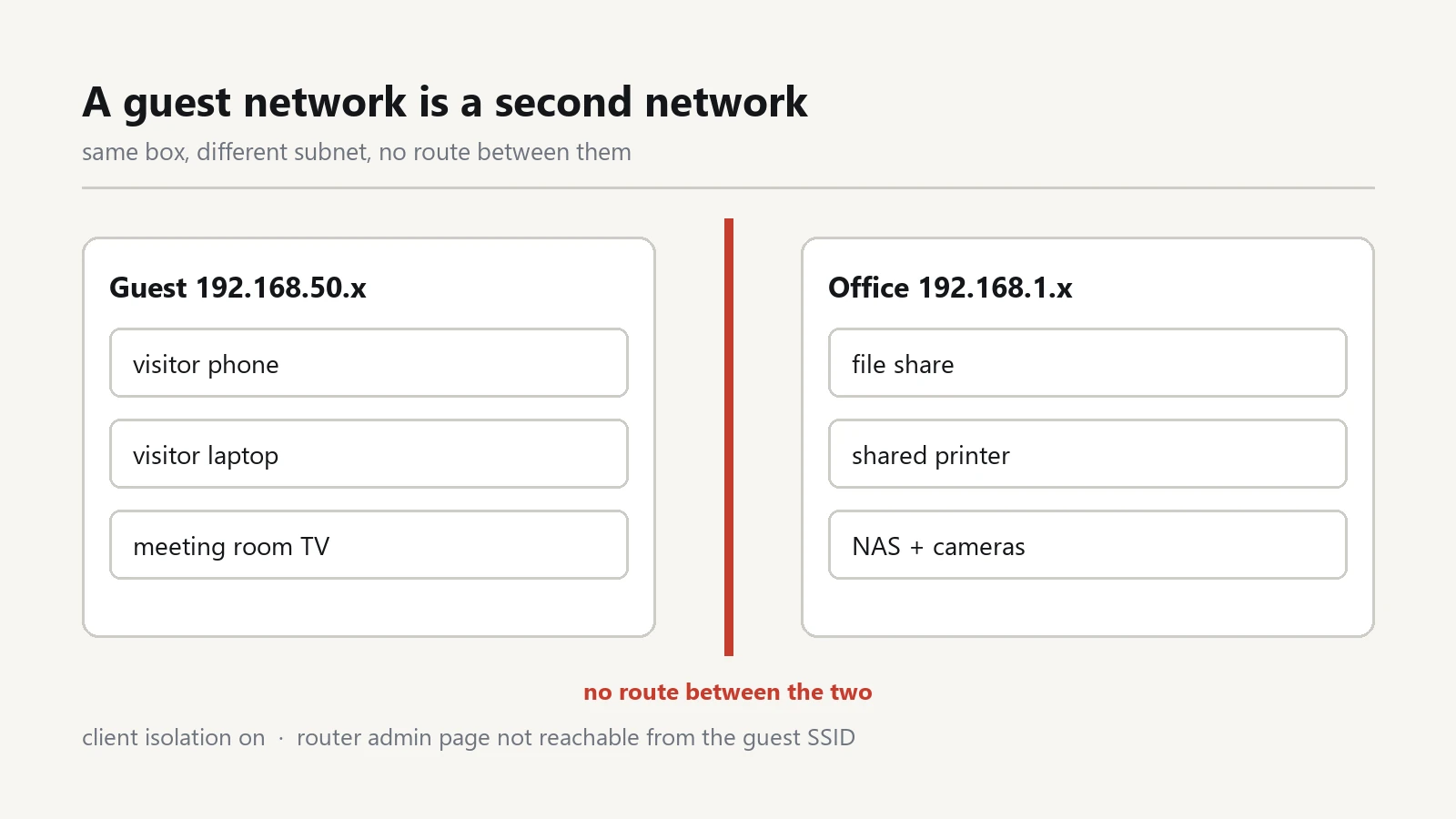
Guest networks deserve their own name and their own password, but they also deserve their own attention. A guest network that shares the main channel with forty visitors becomes a dead weight for the whole office.
Cheap cameras, plugs and printers are often 2.4 GHz only and they reconnect aggressively. Keep them on a separate network, or at least keep a list, so the next time the Wi-Fi misbehaves you know which device is chattering.
When replacing the hardware is the right answer
Buy new hardware when at least one of these is true:
- The access point has no firmware update in years and the vendor no longer lists it.
- It only supports 2.4 GHz, and the office has more than a handful of people on video calls.
- It has no wired port for an uplink, and it sits far from the router.
- More than twenty clients on one access point is already too many.
- Power over Ethernet is missing, so you cannot put it where the signal belongs.
If you do replace it, buy an access point, not another all-in-one router: the one you already have can stay as the router, and you only add the radio where the desks are.
What to do this week
- Run the two pings and write down which one fails.
- Do the wired test for one hour.
- Count the devices per access point.
- Walk the floor with a Wi-Fi analyzer and note the busiest channel.
- Check the firmware version.
- Turn off adapter power saving on the two laptops that complain most.
An office that still drops after all seven has a problem worth measuring, not a problem worth guessing about. If Wi-Fi keeps dropping on every device at the same hour, suspect the access point or the channel before the provider. For the rest of the setup around it, the other guides are collected in the software section.