The printer worked on Friday. On Monday the office PC says there is no printer installed, or the queue fills up and nothing comes out, or the job disappears without a sound. Nobody touched the printer. What changed was the computer.
Windows updates replace printer drivers, reset ports and tighten the way one PC is allowed to print through another. The good news is that the fix is almost never "buy a new printer". Work down this list and most cases end at step three.
Step 1: confirm the printer is alive
Before touching Windows, look at the printer itself. Is it on, is the panel showing an error, is there paper, is the toner light on? Then print the self-test page from its own menu. If the printer cannot print without a computer, no driver will help.
Next, check that it is still on the network. Press the network or information button and note the IP address. Open a browser on the office PC and type that address. If the printer's web page loads, the network is fine and the problem is on the PC, which is where the rest of this list lives.
If the page does not load, ping the address. No answer means the printer lost its address or its cable, not that Windows broke.
Step 2: restart the print spooler, not the computer
The print spooler is the Windows service that queues jobs. It is also the part that gets stuck when a bad job arrives. Restart it before anything else:
- Press the Windows key, type
services.msc, and open it. - Find Print Spooler, right-click, and choose Restart.
- If jobs are stuck, stop the service, delete the files inside
C:\Windows\System32\spool\PRINTERS, then start it again.
One stuck job can block every document behind it, and the queue will look empty because the job is corrupt. This step alone clears a large share of "the printer disappeared" reports.
Step 3: check the port, especially if it is a WSD port
Open Settings, Bluetooth and other devices, Printers and scanners, choose the printer, and open Printer properties, then the Ports tab.
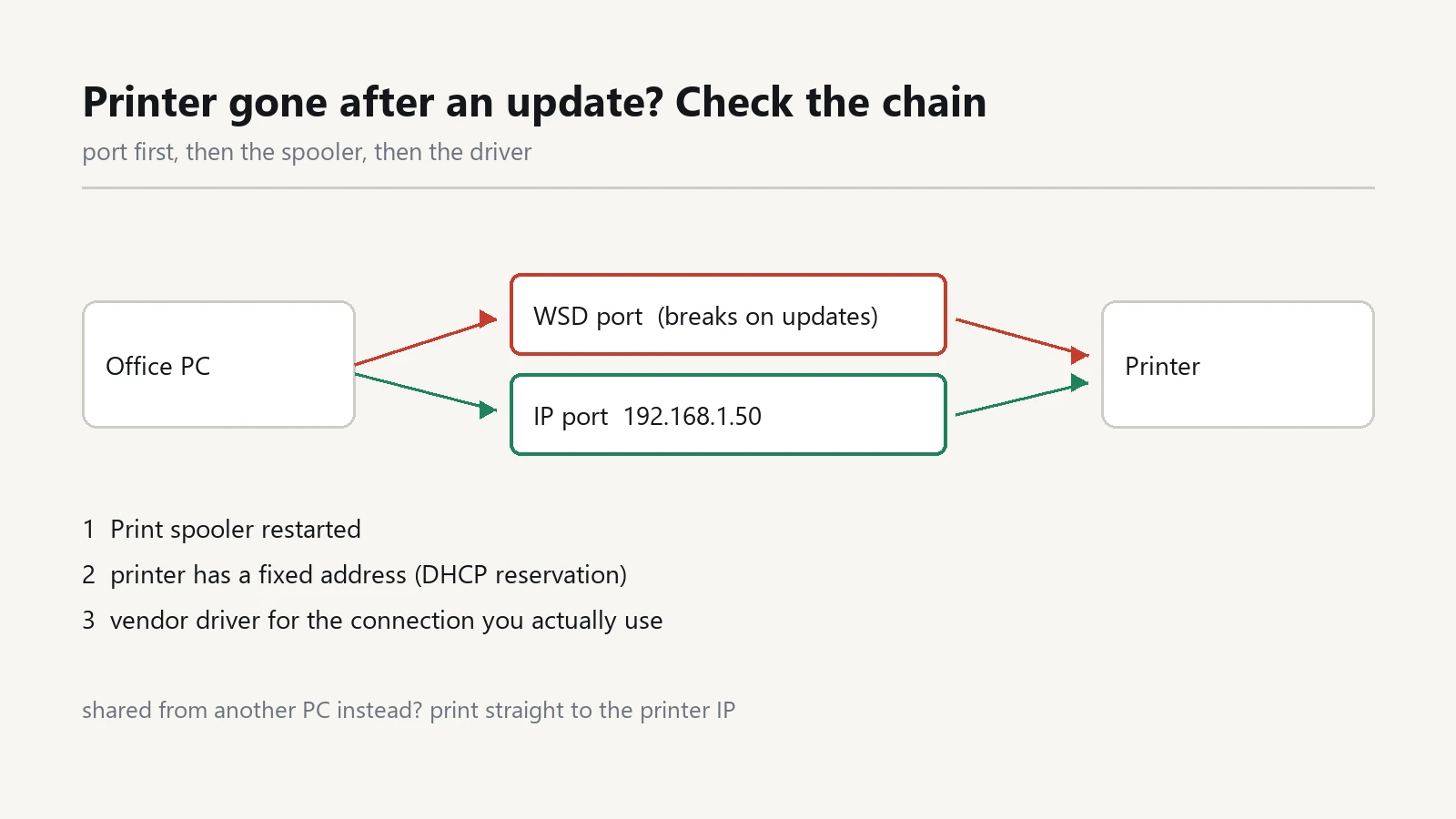
If the ticked port starts with WSD, you have found the most common culprit. WSD is automatic discovery, and updates regularly break it: the printer is still on the network, but Windows can no longer find it, so the queue points at nothing.
The reliable fix is to stop using discovery:
- Note the printer IP address from its panel.
- On the Ports tab, click Add Port, choose Standard TCP/IP Port, and enter the address.
- Select the new port for the printer and print a test page.
An IP port keeps working after updates because nothing has to be discovered.
Step 4: give the printer a fixed address
An IP port only helps if the address does not change. Most offices hand out addresses automatically, so the printer gets a new one after a power cut and the PC keeps printing into the old one.
Two ways to fix it, both fine:
- Set a static address on the printer itself, outside the range the router hands out.
- Or keep the printer on automatic and add a DHCP reservation in the router, so it always receives the same address.
Whichever you choose, write the address on a label on the printer. It is the one number that will save an hour next time.
Step 5: reinstall with the vendor driver, not the generic one
If the queue exists and the port is right but jobs still vanish, the driver is the suspect. Windows ships generic drivers that are good enough to install and not good enough to print.
Remove the printer from Settings, download the driver from the manufacturer's support page for that exact model, and install it. Two details matter:
- Choose the driver that matches the connection: network, not USB, if the printer is on Ethernet or Wi-Fi.
- If the installer asks between a full package and a basic driver, take the full one on the PC that prints most, and the basic one elsewhere.
Keep the installer file in the office shared folder. The next time this happens, you will not need to search for it while a client waits.
Step 6: when the shared printer lives on another PC
Printing through a colleague's computer is the setup updates break most often. The update hardens the connection between the two machines, and the shared printer stops with an error code that starts with 0x0000011b or mentions RPC.
There are registry workarounds for this, and they undo the security fix you just received. Do not use them. Print directly to the printer's IP address from each PC instead, which removes the middle computer entirely and is more reliable on a small network anyway.
If the shared printer is served from a server machine, ask whoever manages it to install the driver package there, so client PCs never fetch a driver from it.
Step 7: stop Windows from choosing the default printer
One setting creates a surprising amount of confusion. In Settings, Bluetooth and other devices, Printers and scanners, turn off Let Windows manage my default printer.
With it on, Windows switches the default to whatever printed last, which is why invoices sometimes come out on the label printer. Turn it off and set the default yourself.
What to check when it prints but the output is wrong
- Blank pages or garbage: wrong driver for the model. Remove it and install the vendor driver for that exact model.
- Pages come out mirrored or half size: a setting in the print dialog, not a driver fault. Check paper size and "fit to page".
- Only some users are affected: their PCs still point at the old WSD port or the old IP. Repeat steps 3 and 4 on each PC.
- Jobs print twice: the printer is installed twice, once by IP and once by name. Remove the duplicate.
Ten minutes of prevention
- Give every network printer a fixed IP and a label with that address.
- Add printers by IP, never by discovery.
- Keep the vendor driver installers in one shared folder.
- Write down model, IP and driver version for each printer.
- Turn off automatic default printer switching.
None of this needs new hardware, and it removes the whole class of failures that appear the morning after an update. If the printer is genuinely old, the sign is simple: the vendor no longer publishes a driver for the current Windows version.
For the rest of the office setup, the other guides are in the software section, including a backup plan that survives a dead drive.